File: Save

Keystroke: Ctrl + S

Hint: File saving is the single most-used operation; it is worth learning the Keystroke shortcut for it.

This menu function uses the standard Windows operating system Save dialog. All the normal operating system conventions apply for selecting a destination folder, etc.

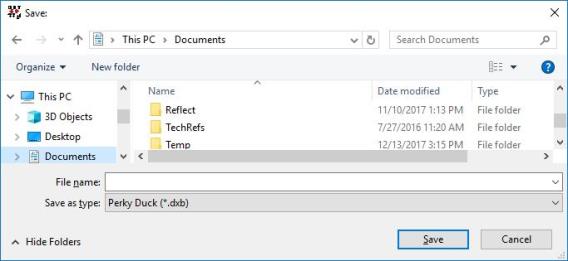
The Save command tells Perky Duck to save your document to a disk file on your computer (or network). If your document already has a name, it is saved immediately. Otherwise, you are prompted for a file name and location, as shown below.

Image shows the File: Save dialog.

File Name: is the text entry field where you enter the name of your document to save it.

Save as type: You may save your file in either the Perky Duck .dxb format, or in the common .brf format. (Check with your instructor as to which format is required.)

Note: If you close Perky Duck without saving your work, a message appears asking if you wish to save your document. Your options are "Yes", "No" and "Cancel".
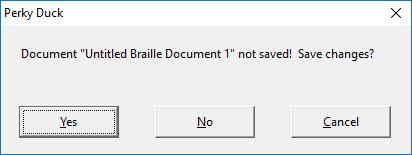
Image showing Save confirmation dialog with three buttons. Yes, No and Cancel.

For more about saving files, see the Autosave Options.