DBT Win 15.1 SR2 and Braille Math
To enter Inkprint Mathematics Notation into DBT Win 15.1 SR2, you need to be familiar with mathematical notation and you need to make use of one of several additional software products. If you are not knowledgeable on braille mathematics, make sure your work is checked by a proofreader until you thoroughly know your abilities and limits.
While Duxbury Systems is recommending third-party software, please note that the general use and support for these products is generally provided by the developer and not Duxbury Systems. Inc. Issues relating to import and braille translation however can be addressed to Duxbury Systems.
Data Entry of Inkprint Mathematics Notation
There are six different data entry systems that can be used:
- Enter math in DBT itself.
- Use MathType to create math in a BANA template Word document to open in DBT.
- Enter math in MS Word direcly using tools build into Word's autocorrect system; then convert to MathType.
- Use Scientific Notebook to create a .tex file to open in DBT.
- Work with a TeX or LaTeX file created in other ways, perhaps written out by a math professor or created from math OCR with InftyReader.
Comments on These Data Entry Methods
Each numbered comment refers to the data entry method above with the same number:
- DBT does not offer an extensive array of tools to help you with direct math entry.
- MathType is recommended for several reasons. There are good math data entry and editing tools, good ability to structure the braille format, and a sighted-friendly view of the math.
- Using the autocorrect method for entering mathematics in Word and then converting to MathType offers most or all of the advantages of using MathType directly and is also more accessible. To convert to Mathtype, select all text, then use the Mathtype menu Format,Convert, then OMML to Mathtype.
- Scientific Notebook is still popular. Not as many tools for formatting the braille as when working with Word and the BANA template.
- LaTeX files from professors or from InftyReader are Very nice when available, most often in colleges.
In general, our recommendation is to use Word with MathType and the Word BANA Braille template. This gives you good tools for creating and displaying the math and for getting the desired BANA format. MathType is fairly inexpensive, especially for schools. Some schools already have multi-user licenses for other purposes.
The Recommended Tool Set
- DBT Win 15.1 SR2 or higher
- SWIFT 5.9 or higher
- MS Word (2007 or above)
- BANA Braille 2015 template for Word
- Mathtype (currently at version 6.9)
Comments
- DBT Win 15.1 SR2 was released in September 29, 2026. Use Help, Check for Updates to make sure you are using this version. Please use the English (UEB) - BANA with NemethDBT Template.
- SWIFT 5.9 is a free product from Duxbury Systems that was released in late March 2016. Install SWIFT 5.9 from See the section below about setting up SWIFT and Word.
- Microsoft Word is available from many sources.
- The BANA Braille 2017 Template is supplied with DBT Win 15.1 SR2; SWIFT 5.9 makes it easy to attach this Word template to your Word documents.
- Mathtype is available from Wiris for the price of $97 (academic price $57). MathType is a mathematics formula editor developed by Wiris. MathType users construct math and science equations in a WYSIWYG environment. These formulas are embedded in Microsoft Word documents. Mathtype is not a free program, but is relatively inexpensive. You need to install Mathtype in order to import Word documents with equations into DBT Win 15.1 SR2.
Setting up SWIFT and Word
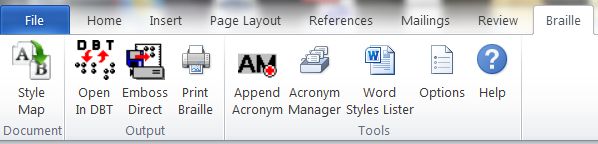
Installing SWIFT adds a Braille Tab in MS Word. This is shown on the top right of the above graphic.
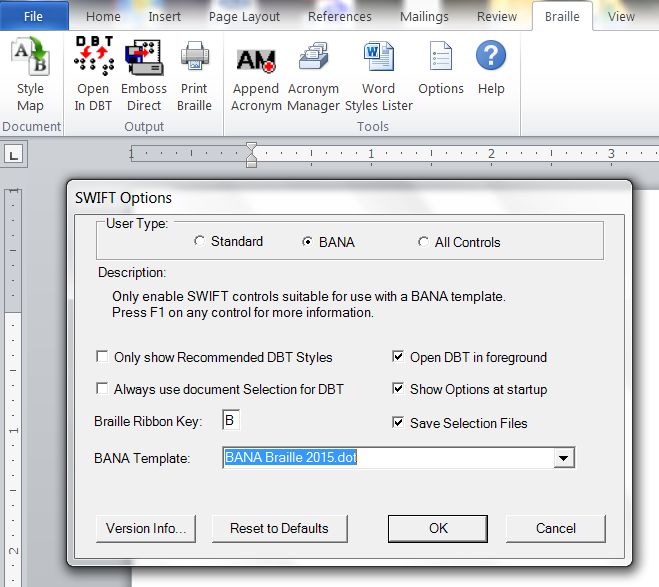
Your first step should be to go to the options menu in SWIFT and check BANA as your User type.
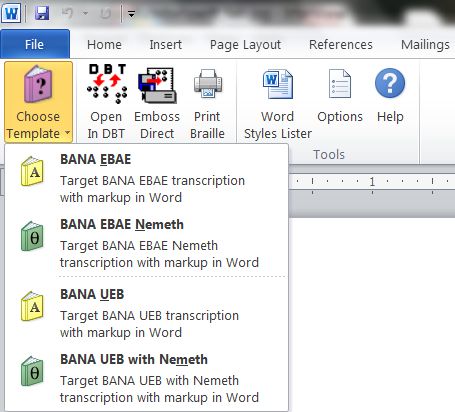
Once you set the User type to BANA, you will see that the left-most option in SWIFT is Choose Template. The Template you want to choose is the bottom one, BANA UEB with Nemeth
Scientific Notebook
Scientific Notebook is an excellent program that works as a "word processor" for mathematical notation, and generates the LaTeX files (specialized textfiles) that DBT can import. Create and print your print or large print mathematics from Scientific Notebook. Save the file from Scientific Notebook. Then launch DBT, and open your Scientific Notebook file inside of DBT. You can translate, and out comes braille for text and mathematical notation. Duxbury Systems supports Scientific Notebook 5.5, which is still available as a download. The new version, Scientific Notebook 6.0.2 or above, is compatible with DBT. If you did get Scientific Notebook 6.0, please update to 6.0.2 or above from the MacKichan website, in order to work with DBT. Scientific Notebook information is available at http://www.mackichan.com/index.html?products/snb.html A simplified manual for Scientific Notebook can be obtained at http://www.sciword.co.uk/SNB.pdf
Infty Reader
InftyReader is OCR (optical character recognition) software to recognize printed document and PDF in scientific fields including mathematical notation and tables, and to output the results in various formats including LaTeX, which DBT can import. The use of InftyReader requires a high-end scanner (400 or 600 dpi). Windows Vista and Windows 7 users should check compatibility before purchase. Infty Reader information is available at http://www.sciaccess.net/en/InftyReader/index.html
Producing UEB text with Nemeth Code (United States)
Whichever method you use to create files for producing Nemeth Code in UEB context, it is important that you use the DBT template called English (UEB) - BANA with Nemeth. There are three styles in this template that provide the machinery for Nemeth Code in UEB context. The three styles are:
- math
- math-TextInMath
- OneWordBridge
The style math is for technical notation. In the braille translation with this DBT template a segment in the math style has been translated to Nemeth Code and has the start and end Nemeth indicators around it, spaced .=_% and .=_: (dots 456, 146 and dots 456, 156).
The style math-TextInMath is intended for use within the math style for enclosed nontechnical notation. In braille, the style math-TextInMath does not add any start or end Nemeth indicators. The braille for the math-TextInMath style in this DBT template is in Nemeth context, with Nemeth digits, the Nemeth punctuation indicator and grouping signs, etc.; it uses no contractions.
The style OneWordBridge is intended for one word separating two segments of technical notation. In braille, the word appears in UEB with unspaced dots 6, 3 (the one-word switch) before it.
To apply a style in DBT, highlight some text, press F8, and select the correct DBT style from the list.
To understand the basics, let's start with working entirely in DBT, without using Microsoft Word, MathType, or Scientific Notebook.
The number 12 followed by period can appear in braille in three different forms in this template.
- In UEB, outside of math style: #ab4
- In math style: #12.
- In math-TextInMath style within math style: #12_4
Any MathType object automatically creates the math style in DBT, and any use of MathType's text style within an object automatically creates the style math-TextInMath in DBT.
Each MathType object will create a separate use of the math style, with its own use of the start and end Nemeth indicators. To avoid that, create a pass through in math section in Word around the desired MathType objects, by inserting special start and end tags. The buttons for starting and ending a pass through in math section are currently called Text In Math Start and Text In Math End (we plan to rename them). These insert the invisible codes [[*idle~ptims*]] and [[*idle~ptime*]] (ptim for pass through in math, with s for start and e for end).
You can think of each MathType object as a pearl. A pass through in math section strings them together. It turns the whole section into one necklace in the math style, with everything outside of the math style (the string) in the math-TextInMath style. A pass through in math section does its work as DBT is importing the file.
The above was based on a presentation by Caryn Navy at the 2016 CTEBVI conference.
Click here for pdf of the presentation handout,
click here for the zipped sample files.
Producing UEB Text with UEB Math
Whichever method you use to create files for producing UEB braille, it is best to use the DBT template called English (UEB) - BANA. In the United Kingdom, use the DBT template called English (UEB) - UK Formatting.
The style math is for technical notation.
The style math-TextInMath is intended for use within the math style for enclosed nontechnical notation.
When importing from Word documents with MathType objects, the MathType objects are assigned the math style. Similarly, when importing from a LaTeX file, the items in math mode are assigned the math style.
Issues That Come Up When Producing UEB Math With or Without DBT
- Familiarize yourself with the UEB symbols. Using DBT can help with this. If DBT's UEB translation table does not know the UEB braille for a particular print symbol, translation of that print symbol will give the UEB shape symbol for U+####, where #### is the Unicode number for the print symbol.
- If adding spaces around signs of comparison or around both signs of comparison and signs of operation, use appropriate tools to do this consistently.
- Know the general guidelines for use of the grade 1 indicator in math.
- Pay attention to how and where to break the line in a long math expression that has no spaces.
Why is the Math Style Important?
- When importing from Word/MathType or from a LaTeX file, any adding of spaces that happens during importing happens only in the items marked in the math style.
- Spaces are added around signs of comparison in math items if you have set that up in DBT's Global settings.
- During file import, within math items, spaces are added to the left of those function names that are preceded by technical notation without a space, as in xsin theta!!
- On the print side in DBT, you can use a hyphen as a shortcut inside the math style for entering the minus sign character. Inside the math style it becomes the UEB minus sign, dots 5, 36; outside of the math style it is treated like a hyphen.
- Any DBT code that affects UEB math translation is effective only within the math style. One such code is the [utpN] code, where N is 0, 1, or 2.
To apply a style in DBT, highlight some text, press F8, and select the correct DBT style from the list.
Spacing in UEB Math
There is an option in UEB to add spaces around signs of comparison, like the equals sign and less than sign, around both signs of comparison and signs of operation, like the plus sign, or around neither of these. Adding spaces around only signs of comparison seems to be the most common preference for UEB transcribers, except that those producing material for students in the first few grades may want to add spaces around signs of operation as well. For DBT users adding spaces around signs of comparison only, there is an option to have these spaces added around signs of comparison as you import a Word or LaTeX file.
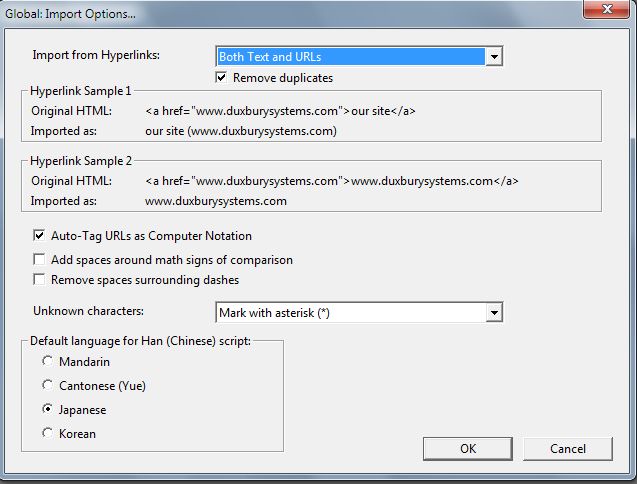
We will also look into adding an option like this for adding spaces around signs of operation.
Previously we recommended use of the DBT code [amspN] for setting up the adding of spaces around signs of comparison or both signs of comparison and signs of operation. That code still works, but we are downplaying it, because it can have some unwanted side effects. That led us to creating the import option for adding spaces around signs of comparison.
- The default of [amsp0] does not add any spaces.
- [amsp1] adds spaces around signs of comparison.
- [amsp3] adds spaces around both signs of comparison and signs of operation (common usage for early elementary school students).
Grade 1 Indicators in UEB Math
Click here for an excerpt from Unified English Braille Guidelines for Technical Material which explain the role of grade one indicators in UEB math.
DBT and Grade 1 Indicators in UEB Math
As mentioned above, UEB gives some leeway for deciding when and where to use grade one character, word, and passage indicators in math, with more than one correct result. If you do not like some of the choices that DBT makes in this regard, you can influence DBT's decisions with a [utpN] code.
utp stands for "use transcriber preference." The N is the number 0, 1, or 2 as described below.
- [utp0] -- Use dBT's default logic on this; the same as using no [utpN] code.
- [utp1] -- favor grade 1 math usage, with more use of grade 1 word or passage indicators.
- [utp2] -- favor grade 2 math usage, with less use of grade 1 word and passage indicators.
The above was based on a presentation by Caryn Navy at the 2016 CTEBVI conference.
Click here for pdf of the presentation handout,
click here for the zipped sample files.
Braille-to-Print Nemeth Code to Inkprint Mathematics
Duxbury DBT can now produce math printed output directly from braille. This works with three types of Duxbury DBT *.dxb braille files:
- Just Nemeth braille in DBT (everything is in math mode). Use the Math Notation (Nemeth 1972 math mode only) Template. With this template, writing math is easy, writing text is harder. See How to Write These Files (below).
- A mixture of literary braille text and math Nemeth braille. Use the English text with math Template that you create yourself. See Save the Math Template for Your Own Use (below).
- A UEB file, which can mix UEB literary text with UEB math. Use the English (Unified) Template. When BANA voted to adopt UEB in the United States, the vote included maintaining Nemeth Code for technical material. Thus UEB math has a more limited role in the US.
A blind student can enter math in Nemeth code for a Sighted Teacher. This requires the use of third part software. One such product, Scientific Viewer from MacKichan Software, is freeware. Using Scientific Viewer, you can open the LaTeX file produced by DBT Win 15.1 SR2. You can view the inkprint mathematics notation on the screen, or print it out.
Copyright Duxbury Systems, Inc. Tuesday, August 11, 2026